

How Worthwhile Chat works
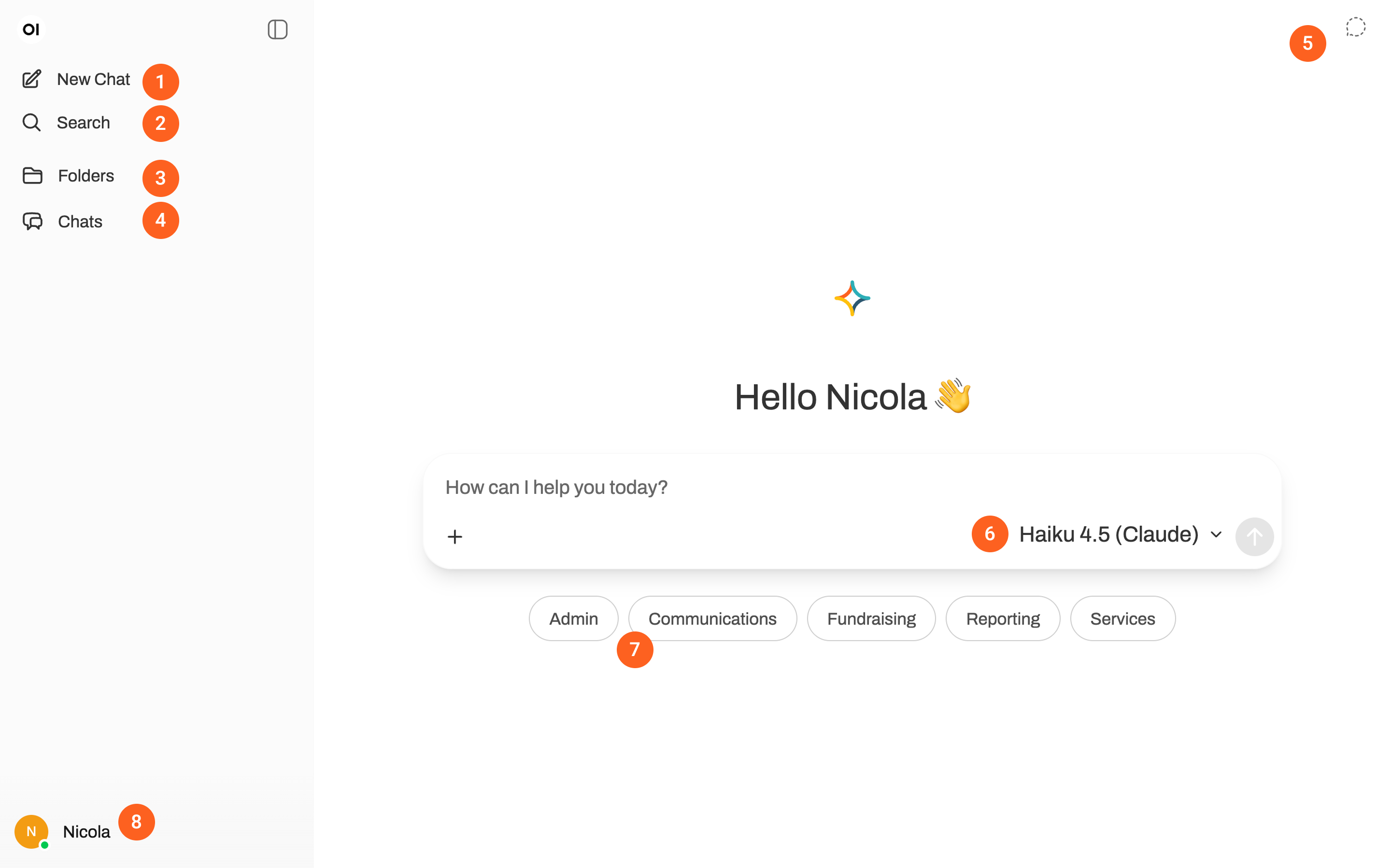
Clicking "New Chat" will start a new conversation in Worthwhile Chat.
Use the "Search" function to find past chats by keyword.
Folders allow you to organise chats by project or theme. Create folders and name them to suit your needs. You can also add a system prompt and files to a folder. This means that when you start a chat while in a folder, the chat will inherit the folder's system prompt and files. Read more in our FAQ.
This is where you access all your past chats. Click the "..." menu on each chat to share, rename, move to a folder, and more.
Turn on Temporary Chat if you don't want a particular conversation to show up in the Chats list.
Select the model you want to use when starting a conversation in Worthwhile Chat.
Starter prompts to help with different tasks. Click the tag, then select a prompt to use. Once selected, use your arrow keys to scroll down the prompt and edit as needed.
Click the account menu to adjust account Settings, view Archived Chats, and more.